
How to use custom functions
Creating and using custom functions
This guide shows you how to configure and test a custom function.
Custom functions in Create are pieces of JMESPath code with defined input parameters. They are useful for simplifying complex transformations that you need to reuse across multiple transformations within a unit.
Custom functions are created in an editor specifically made for data transformations. Once a function is defined, it can be used anywhere within the same unit by referencing it by its name preceded by a hashtag.
Example: #myCustomFunction().
Creating a custom function
- From the Left menu, select Custom functions.
- Select New function.
- Enter a name for the new function.
- The name must start with a letter or an underscore, and can include letters, numbers and underscores.
It is not possible to use whitespace characters such as space in the name.
- The name must start with a letter or an underscore, and can include letters, numbers and underscores.
- Select Create.
- Open the custom function you just created.
The screen is divided into two panes: the Function Pane and the Testing Pane.
The Function Pane on the left contains the all code and functionality for the function itself. You define parameters here and write the transformation for the function.
The Testing Pane on the right contains editors for sample data, sample transformations and test results.
The Function Pane
The Function Pane includes the function name, the Parameters Menu and the Function Transformation Editor.
Parameters
Define parameters at the top of the Function Pane. Select the + button next to Parameters to create one.
Each parameter needs a name. The name is used when writing the transformation in the editor below.
By value and by expression
Each parameter can be passed either by value or by expression.
By value means the parameter is evaluated when the function is called. The evaluated value is passed into the function.
By expression means the parameter is evaluated only when it is used inside the function body.
ByValue is enabled by default.
To switch it to "by expression", toggle the checkmark next to the ByValue label.
Function Editor
The text editor below the parameters is where you write the JMESPath transformation for the function.
If the function uses parameters, refer to them by placing a hashtag # in front of the parameter name.
The Testing Pane
The Testing Pane contains three subpanes: Sample Data, Sample Transformation and Sample Result. These work the same way as the Data tab in the Recipe Editor.
Sample Data
Add sample data that you want to use when testing the function.
This makes it possible to test the function with values taken from the sample data.
Test Transformation
Use the Test Transformation editor to test calling the function. You can pass either hardcoded values or values from the Sample Data.
The editor supports both approaches in the same test.
Results
The Results panel shows the output of the function based on the test transformation. It updates whenever you modify the transformation or the sample data.
Example function
Here is an example function that joins the first and last name of a person to create a full name:
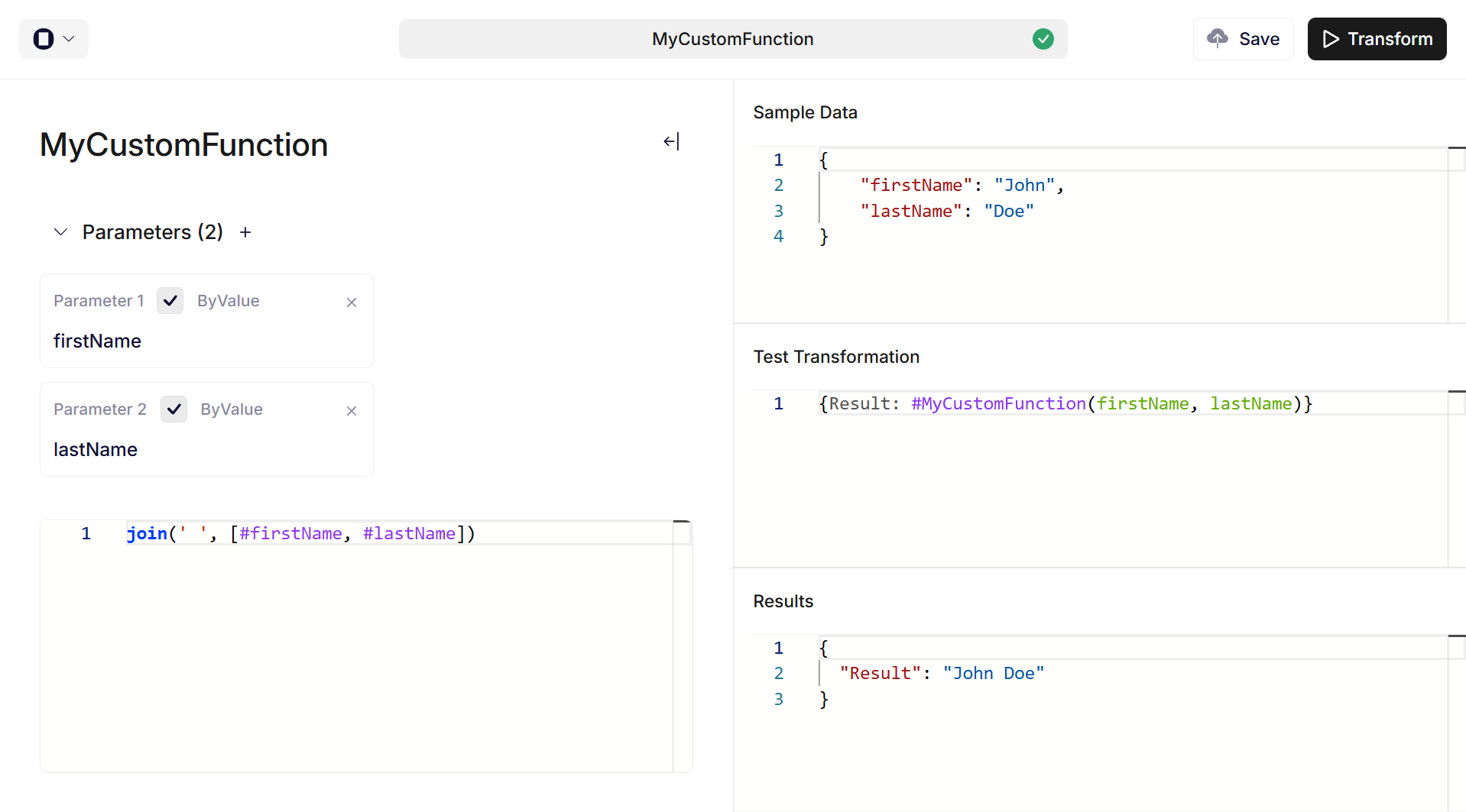
Function for joining the first and last name of a person to yield a full name.
Updated 11 months ago