
Date
Use a Date node to collect date and time input.
Introduction
A Date node allows you to select a specific date and optionally a time. Use it when the value must follow a valid calendar date format.
Typical examples include:
- Document dates
- Deadlines
- Contract start dates
Add a Date node
To add a Date node, click the plus (+) icon in the Information Tree and select Date.
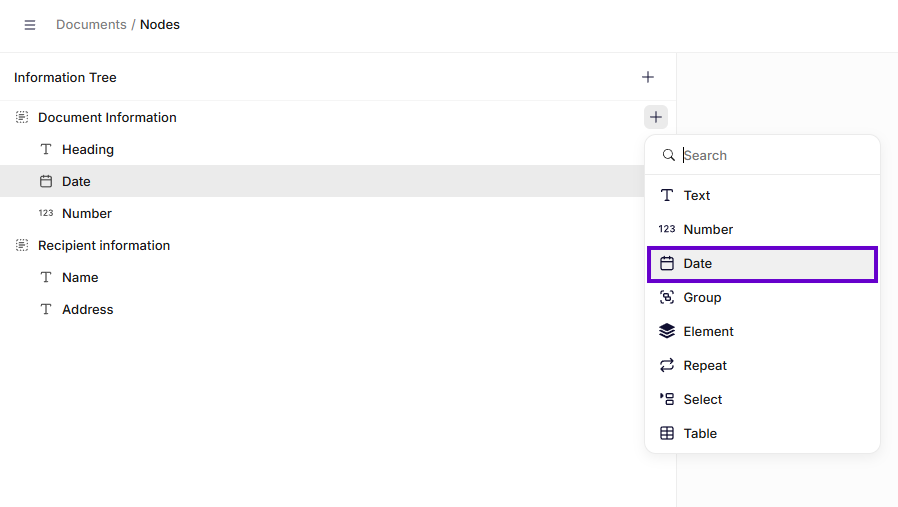
Insertion of Date node
General settings
Name
Enter a clear name. This label appears in the information tree and helps you identify the field.
Description
Add a short description to explain what should be entered.
Required
Enable this option to make the field mandatory. The user creating the document must enter a value before you can continue.
Default value
Enter a default date. The field will be pre-filled with this value when the form opens. The user creating the document can change or remove it later.
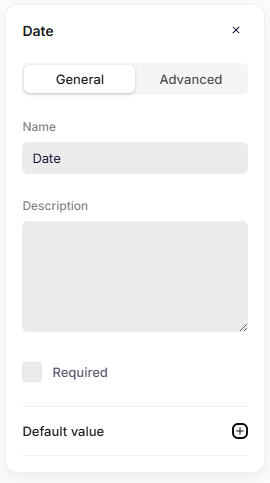
General settings
Advanced settings
Key
The key automatically inherits the Name you enter in the General settings. If needed, you can change it and define a unique key for the node.
The system uses the key to reference this field in the data structure and in templates.
Use a clear and consistent naming pattern. For example: documentDate or contractStartDate.
Do not use spaces or special characters. Use letters only.
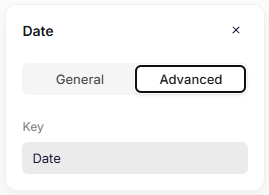
Advanced settings
Format dates in the template
After you insert a Date node into the template, you can control how the date appears in the output.
Select the node in the template and choose a Format option.
None
Displays the date exactly as entered.
Short
Displays a compact date format.
Example:
| Input | Output |
|---|---|
| 5 March 2026 | 05/03/2026 |
Long
Displays the date with the full month name.
Example:
| Input | Output |
|---|---|
| 5 March 2026 | 5 March 2026 |
Full
Displays the full date including weekday.
Example:
| Input | Output |
|---|---|
| 5 March 2026 | Thursday, 5 March 2026 |
ISO 8601 Datetime
Displays the date and time using the international ISO 8601 standard.
Example:
| Input | Output |
|---|---|
| 5 March 2026 | 2026-03-05T00:00:00 |
ISO 8601 Date
Displays the date using the ISO 8601 date standard.
Example:
| Input | Output |
|---|---|
| 5 March 2026 | 2026-03-05 |
Custom format
Lets you define your own date format code. This gives you full control over how the date appears in the output.
Common custom date formats
| Format code | Example output | Description |
|---|---|---|
dd/MM/yyyy | 05/03/2026 | Day, month, and year with leading zeros |
d/M/yyyy | 5/3/2026 | Day and month without leading zeros |
dd MMM yyyy | 05 Mar 2026 | Short month name |
dd MMMM yyyy | 05 March 2026 | Full month name |
yyyy-MM-dd | 2026-03-05 | ISO-style date format |
dddd, dd MMMM yyyy | Thursday, 05 March 2026 | Weekday and full date |
Notes
dshows the day.Mshows the month.yshows the year.- Repeating characters change the format (for example
MvsMMMM).
Culture
The Culture setting controls how dates are displayed based on regional formatting rules.
Different cultures use different date orders and month representations.
For example, the same date may appear differently depending on the selected culture.
| Culture | Output |
|---|---|
| English (US) | March 5, 2026 |
| Danish (DK) | 5. marts 2026 |
| Dutch (NL) | 5 maart 2026 |
| German (DE) | 5. März 2026 |
Choose the culture that matches the formatting rules of your document or audience.
Updated 6 months ago