
Element
Structure your document
Introduction
Use an Element node to create a structured sub-document inside your main document.
An Element allows you to separate logic, content and structure into its own isolated block while still keeping everything inside the same recipe. This makes your document easier to organize, especially when working with complex sections or reusable structures.
In the Information Tree, Elements appear as expandable items. You can add other nodes inside them, such as Text, Date, Number, Group, Repeat or another Element.
Use an Element to:
- Separate complex logic into its own structured block.
- Create reusable document sections.
- Improve clarity and maintainability in large recipes.
- Organize related fields and logic together.
Add an element
You can add an element in a section, repeat, group or another element.
To add an element, press the plus (+) icon in your Information Tree at the relevant location:
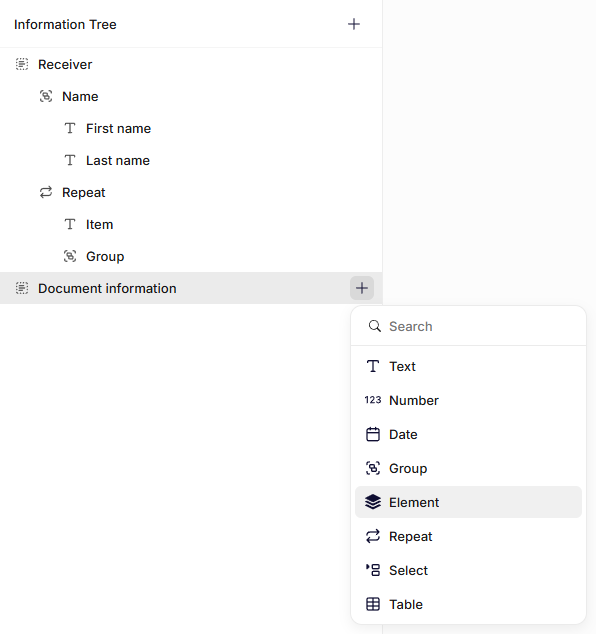
Adding an Element node
General settings
Name
Enter a clear name. This label appears in the Information Tree and helps you identify the node.
Choose a name that reflects the purpose of the sub-document, such as Address block, Invoice details or Summary.
Reference
Choose an existing element to reference instead of writing the content of the element directly inside the node.
Edit content
Add/Edit the content of the element node.
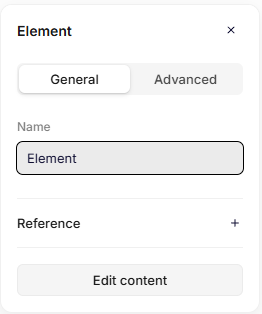
General settings
Advanced settings
Key
The key automatically inherits the Name you enter in the General settings. If needed, you can change it and define a unique key for the node.
The system uses the key to reference this field in the data structure and in templates.
Use a clear and consistent naming pattern. For example: addresses or invoiceDetails.
Do not use spaces or special characters. Use letters only.
Updated 6 months ago