
Themes
Applying themes to your documents
Overview
This article describes how themes are configured and applied in Omnidocs Create.
A theme controls the styling of documents generated by templates. It contains design definitions such as fonts, colors, layout rules, and element styling. These settings are applied automatically when a template generates a document.
Themes allow you to maintain consistent styling across multiple templates without modifying each template individually.
Themes are configured at unit level and/or template level and can be selected when configuring a template. A unit can also define a default theme that templates will use unless another theme is explicitly chosen.
Theme structure
A theme consists of several configuration components that define the styling of generated documents.
| Component | Description |
|---|---|
| Typographies | Defines fonts, font sizes, and text styling used throughout the document. |
| Colors | Defines the color palette used for headings, highlights, and other styled elements. |
| Layout rules | Controls margins, spacing, and alignment of document elements. |
| Element styling | Defines styling rules for elements such as tables, lists, graphs, and other structured content. |
| Headers / Footers | Defines the content and layout used in document headers and footers. |
These components together define how the document is rendered when it is generated.
Theme files
A theme can contain styling definitions for multiple output formats.
Each theme may include:
| File | Purpose |
|---|---|
.docx file | Defines styling when generating Word documents. |
.html file | Defines styling when generating HTML output. |
When a document is generated, the system uses the styling file that matches the selected output format.
If both formats are configured, the same template can generate documents in multiple formats while maintaining consistent design.
Theme scope
Themes exist within a unit and are available to all templates in that unit.
A theme can be used in two ways:
| Scope | Description |
|---|---|
| Unit-level default theme | Automatically applied to templates in the unit unless overridden. |
| Template-level theme | A theme selected directly in the template configuration. |
If both are defined, the template-level theme takes precedence.
Adding a new theme
To add a new theme to your unit, simply navigate to your "Theme" content source.
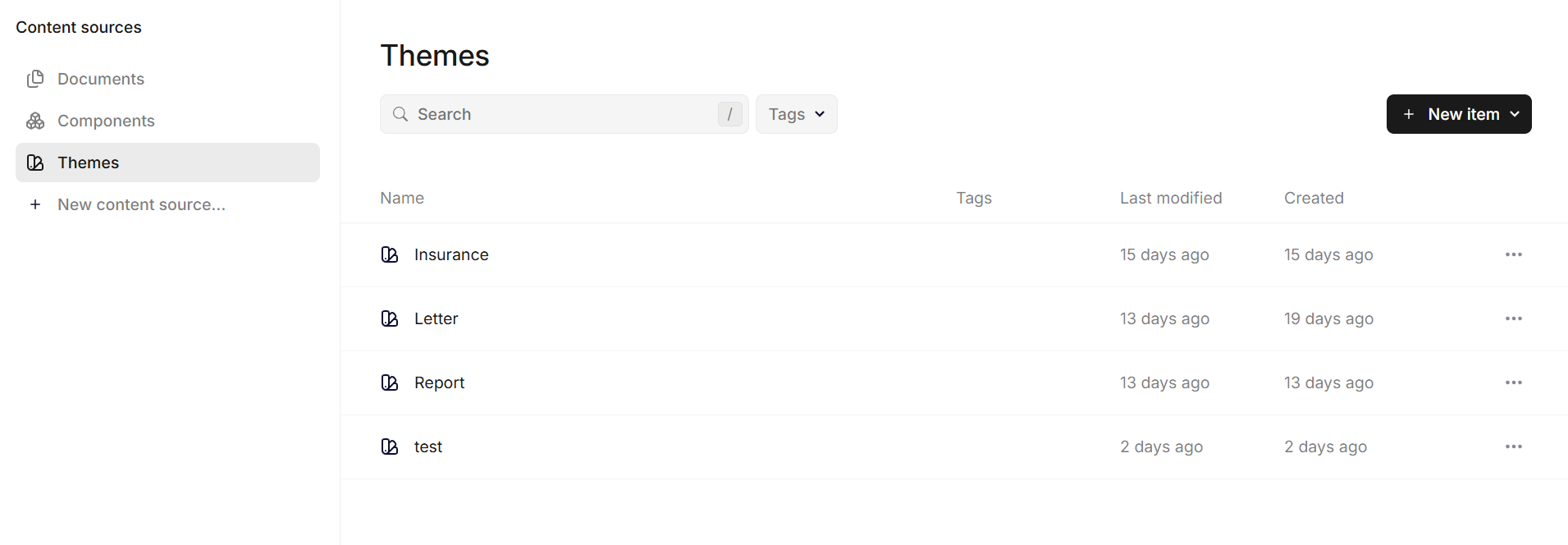
Theme content source
From there, you select "New item" and give your theme a name.
Upon creation, you simply upload the .docx-file and .html-file to the newly created theme.
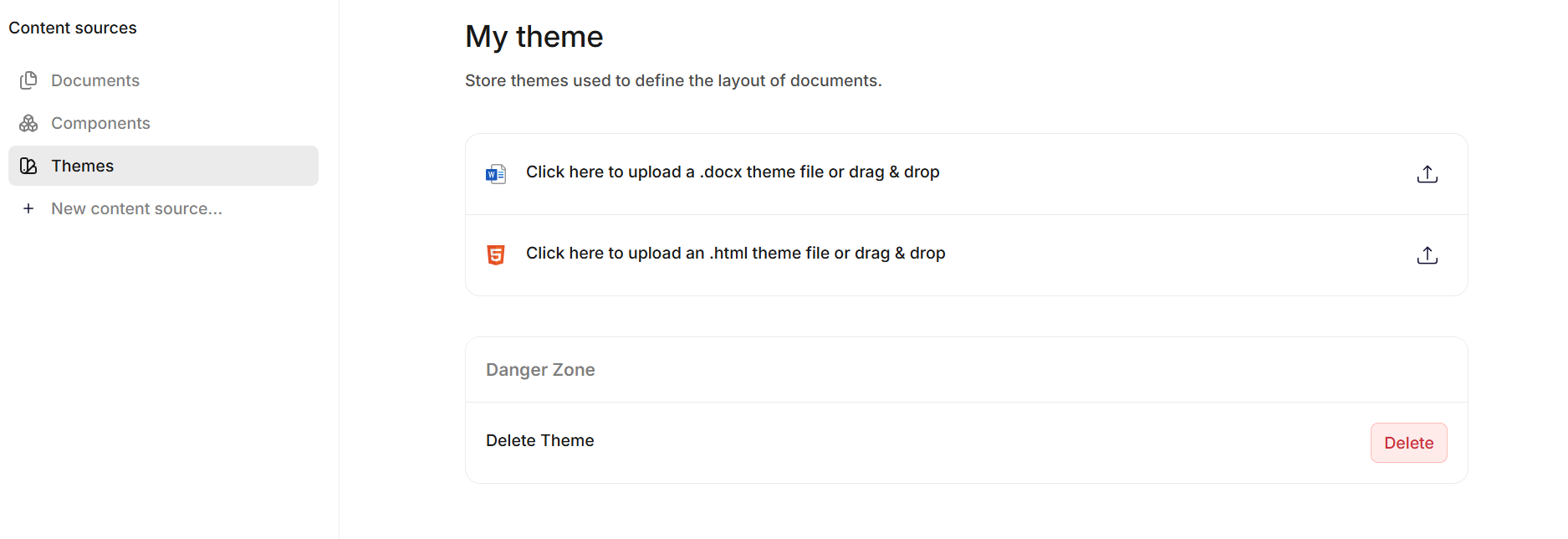
Theme
Applying a theme to a unit
You can apply a unit-level theme in the general settings of your unit.
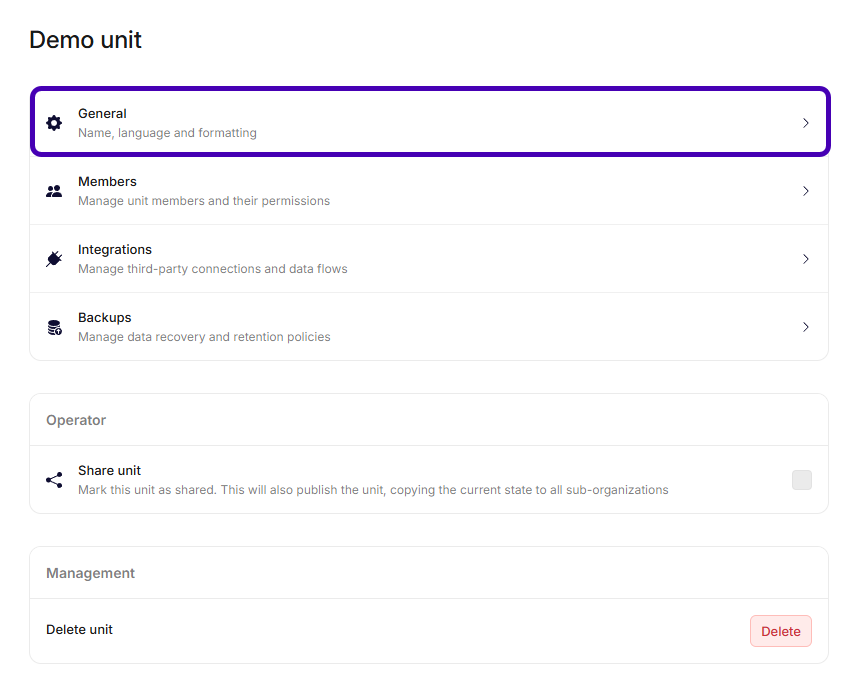
Unit settings
In general settings, you just browse to the theme, you want to apply as default.
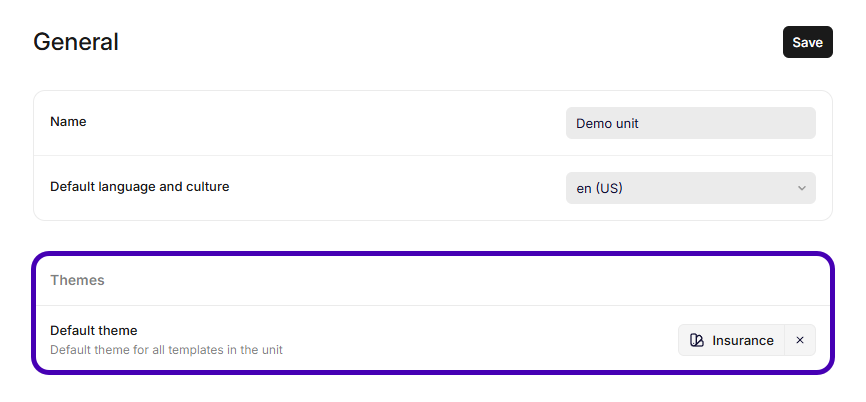
General settings
Changing the theme will affect all future documents generated from that unit, unless a template-specific theme has been applied to some of the templates.
Applying a theme to a template
You apply a template-level theme when configuring template, by pressing the cogwheel in the top-right of the builder.
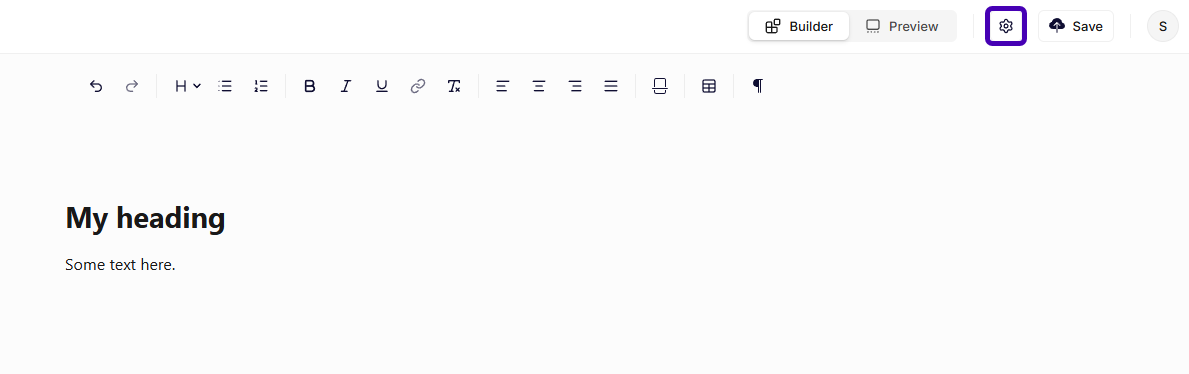
Template builder
From there, you can browse to the theme you want to apply per default for that template specifically.
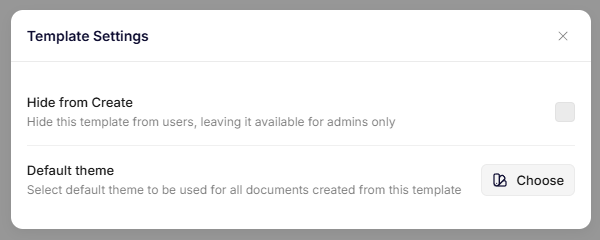
Template settings
Changing the theme will affect all future documents generated from that template.
Headers and footers
Themes can define the content used in the headers and footers of generated documents.
Header and footer definitions may include:
- Organization branding
- Page numbers
- Document metadata
- Standardized legal text
These elements are automatically included when a document is generated.
Theme selection behavior
When generating a document, Create determines what theme to use per default in the following order:
- Template-level theme
- Unit-level default theme
- System default styling
This ensures that a theme is always applied even if no explicit configuration exists.
Updating themes
To update a theme, you navigate to it in the admin page when browsing your content sources.
After opening the theme, you can replace both the .docx-file and .html-file.
Good to know
Theme entry binding
It is possible to define a specific binding in your themes that define exactly where content should be inserted from your templates.
For .docx, the entry binding is a content control with the following Tag:
{"BindingType": "ThemeEntry" }
For .html, the entry binding is an html-snippet with the following contents:
<p data-binding-configuration='{"BindingType":"ThemeEntry"}' data-type="binding" />
Updated 6 months ago