
Information Tree
Define the data structure used by your template
Overview
The Information Tree is where you define the data structure used by a template.
It contains all fields, groups, and logic that control how information is collected and inserted into your document.
Each node in the tree represents a piece of data or a structural component. These nodes can be referenced in the rich-text editor to dynamically insert values into the generated document.
The information tree allows you to:
- Define input fields for users
- Organize data into logical structures
- Create conditional sections
- Repeat sections of content
- Build complex data models for templates
Together with the template editor and data transformations, the information tree forms the foundation of how a document is generated.
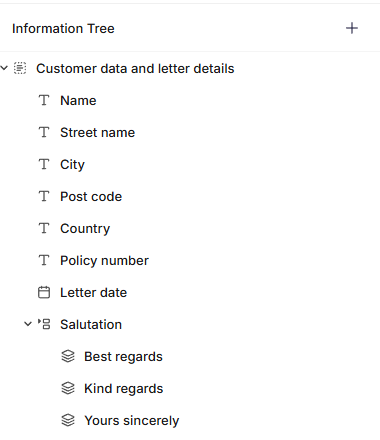
Information tree with nodes
Structure of the Information Tree
The Information Tree is hierarchical.
Nodes can contain other nodes, allowing you to create nested structures.
For example, a document may contain a group called Customer data which includes fields such as:
- Name
- Address
- City
- Postal code
- Country
Grouping related fields together improves organization and helps create structured data behind the scenes.
The structure of the information tree also defines how data appears in the form shown to end users.
Node types
When adding a node to the Information Tree, you can choose from several different types.
| Node | Description |
|---|---|
| Text | A field for entering text values such as names or addresses. |
| Number | A field for numeric values. |
| Date | A field for selecting dates. |
| Group | A container used to organize related fields together. |
| Element | A sub-document used to separate logic and structure. |
| Repeat | Allows a section of fields to repeat multiple times. |
| Select | Allows the user to choose between predefined options. |
| Table | Displays structured tabular data. |
| Image | A field for selecting an image. |
Each node type serves a specific purpose and helps define how data is collected and structured.
Adding nodes
To add a new node to the Information Tree:
- Locate the position where you want to add the node.
- Click the "+" button next to the relevant section or group.
- Select the node type you want to add.
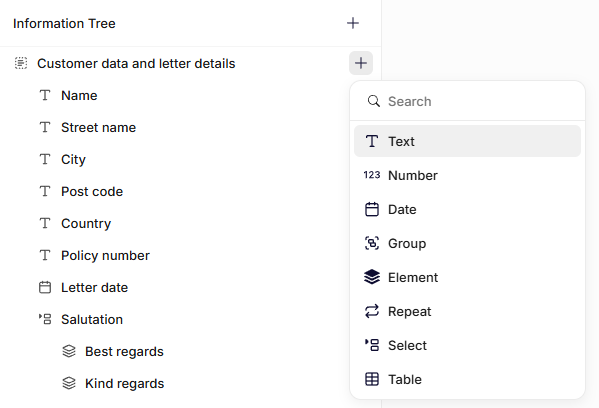
Adding a node to the information tree
Once added, the node becomes part of the tree structure and can be configured using its settings.
Referencing nodes in the template
Nodes from the Information Tree can be inserted into the document using the rich-text editor.
When inserted, they appear as dynamic tokens that represent the node’s value.
For example:
- A Name node can be inserted to display the recipient’s name.
- A Date node can populate a letter date.
- A Select node can control which content blocks appear.
When the document is generated, Omnidocs Create replaces these tokens with the actual data provided by the user or integrations.
Organizing large trees
As templates grow more complex, the Information Tree can contain many nodes.
To keep the structure manageable:
- Use Groups to organize related fields.
- Separate logic using Elements.
- Use Repeats for lists or repeating sections.
- Choose clear and descriptive node names.
A well-structured Information Tree makes templates easier to maintain and understand.
Good to know
Data Structure
Behind the scenes, the Information Tree defines the data structure used by the template.
Each node creates a corresponding key in the data model.
This data model is used when inserting values into templates and when performing data transformations.
Node Keys
Each node contains a unique key that identifies it in the data structure.
These keys are used internally when referencing the node in templates, transformations, and integrations.
Keys are automatically generated when a node is created.
Updated 26 days ago