
Text
A Text node lets you collect free text input.
Introduction
Use a Text node to collect free text input.
A Text node allows you to enter words, sentences or short descriptions. It is the most flexible field type when the input does not follow a fixed format like numbers or dates.
Add a Text node
To add a Text node, click the plus (+) icon in your section and select Text.
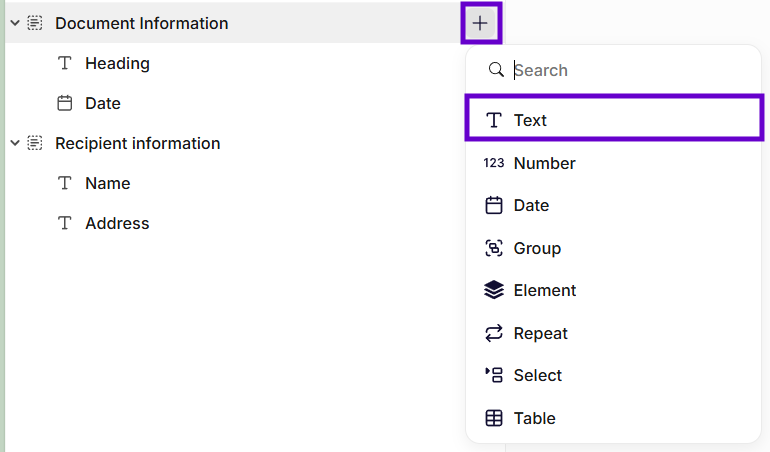
Insertion of a text node
General settings
Name
Enter a clear name. This label appears in the Information Tree and helps you identify the field.
Description
Add a short description to explain what should be entered.
Required
Enable this option to make the field mandatory. You must enter a value before you can continue.
Text area
Enable this option to allow multi-line input. Use it for longer text, such as comments or descriptions.
Leave it disabled for short, single-line input.
Max length
Set the maximum number of characters allowed. Use this to limit the length of the input.
Default value
Enter a value that pre-fills the field. You can change or remove it later.
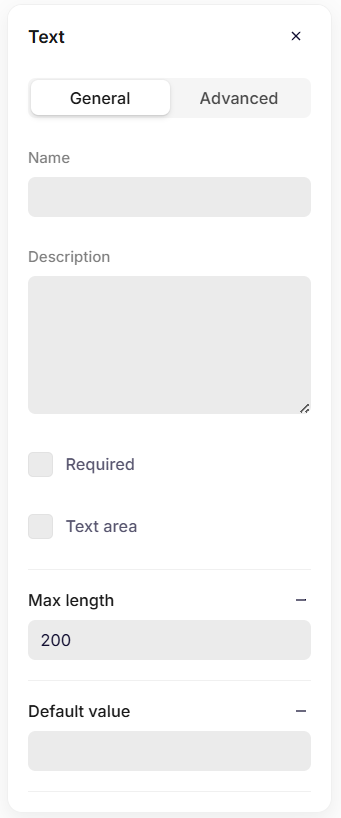
General settings
Advanced settings
Key
The key automatically inherits the Name you enter in the General settings. If needed, you can change it and define a unique key for the node.
The system uses the key to reference this field in the data structure and in templates.
Use a clear and consistent naming pattern. For example: recipientName or documentHeading.
Do not use spaces or special characters. Use letters only.
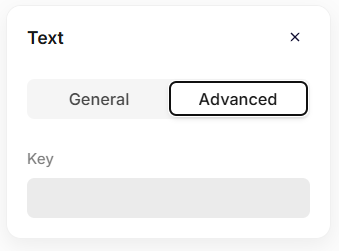
Advanced settings
Format text in the template
After you insert a Text node into the template, you can control how the text appears in the output.
Select the node in the template and choose a Format option.
The format changes the casing of the text automatically:
| Setting | Description |
|---|---|
| None | Keeps the text exactly as entered. |
| Lowercase | Converts all characters to lowercase. |
| Uppercase | Converts all characters to uppercase. |
| Titlecase | Capitalizes the first letter of each word. |
| Sentencecase | Capitalizes the first letter of the sentence. |
This ensures the output always follows the correct text format, regardless of how the text was entered.
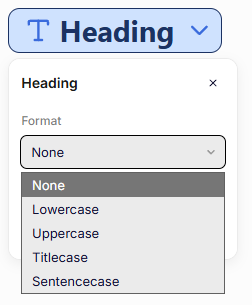
Formatting a text node
Updated 6 months ago