
Table
Insert tables in your documents
Introduction
Use a Table node to display structured data in a table layout inside your document.
A Table node allows you to organize multiple fields into rows and columns. Each row represents one item, and each column represents a field defined inside the table.
This node is useful when you need to present repeating or structured information in a clear and readable format, such as lists of people, products, or policy details.
Add a Table node
To add a Table node, click the plus (+) icon in your section and select Table.
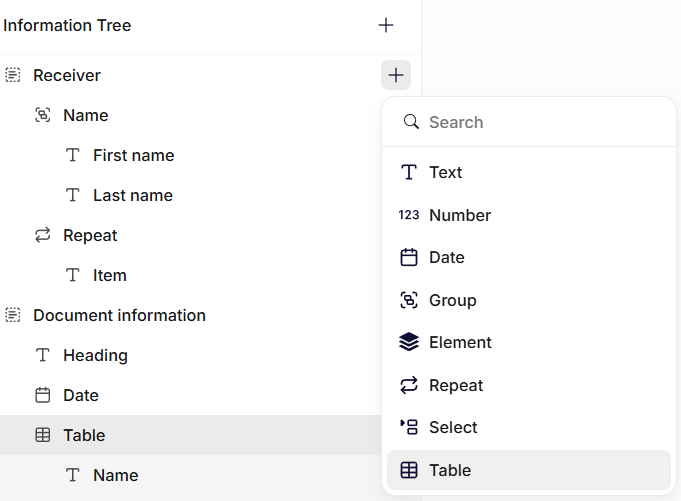
Insertion of a table node
After adding the Table node, you can insert fields inside it. Each field becomes a column in the table.
For example, a table could contain fields such as:
- Name
- Job title
- Department
Each row in the table will then display the values for these fields.
General settings
Name
Enter a clear name. This label appears in the information tree and helps you identify the table.
Description
Add a short description explaining what information the table should contain.
Column fractions
Column fractions control the width of each column in the table.
Each column is assigned a fraction value that determines how much space it occupies relative to the other columns.
For example:
- A column with fraction 2 will be twice as wide as a column with fraction 1.
- Columns with the same fraction value will have equal width.
Adjusting column fractions helps you balance the layout when some fields require more space than others.
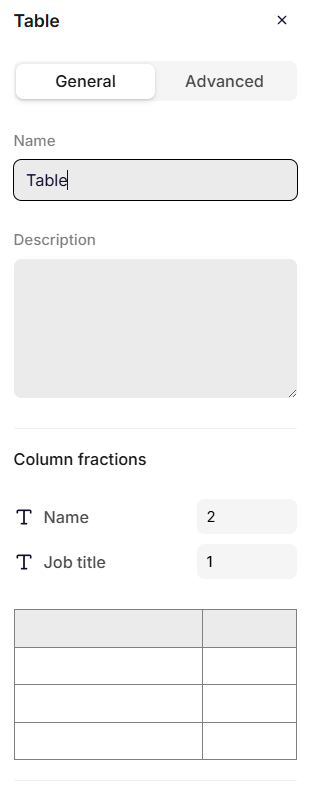
Table settings
Advanced settings
Key
The key automatically inherits the Name you enter in the General settings. If needed, you can change it and define a unique key for the node.
The system uses the key to reference this table in the data structure and in templates.
Use a clear and consistent naming pattern. For example: employeeTable or policyDetails.
Do not use spaces or special characters. Use letters only.
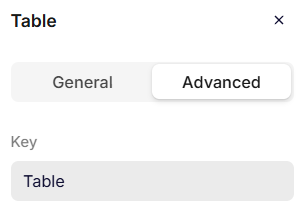
Advanced settings
Using Table nodes in templates
When a Table node is inserted into a template, the document will render a table using the fields defined inside the node.
Each field becomes a column, and each item in the data becomes a row.
Table nodes are commonly used to present structured information such as:
- Lists of employees
- Product inventories
- Coverage summaries
- Financial breakdowns
The table automatically adapts to the number of rows provided by the data.
Updated 6 months ago