
Preview
Preview the output of your templates
Overview
The Preview mode allows you to test and validate how a document will look when it is generated based on your template.
Preview mode combines the template, theme, and form data to simulate the final output document. This allows administrators to verify formatting, dynamic fields, conditional logic, and layout before publishing or using the template in production.
Instead of generating a full document each time, preview mode lets you interactively fill out the form and immediately see how the document changes.
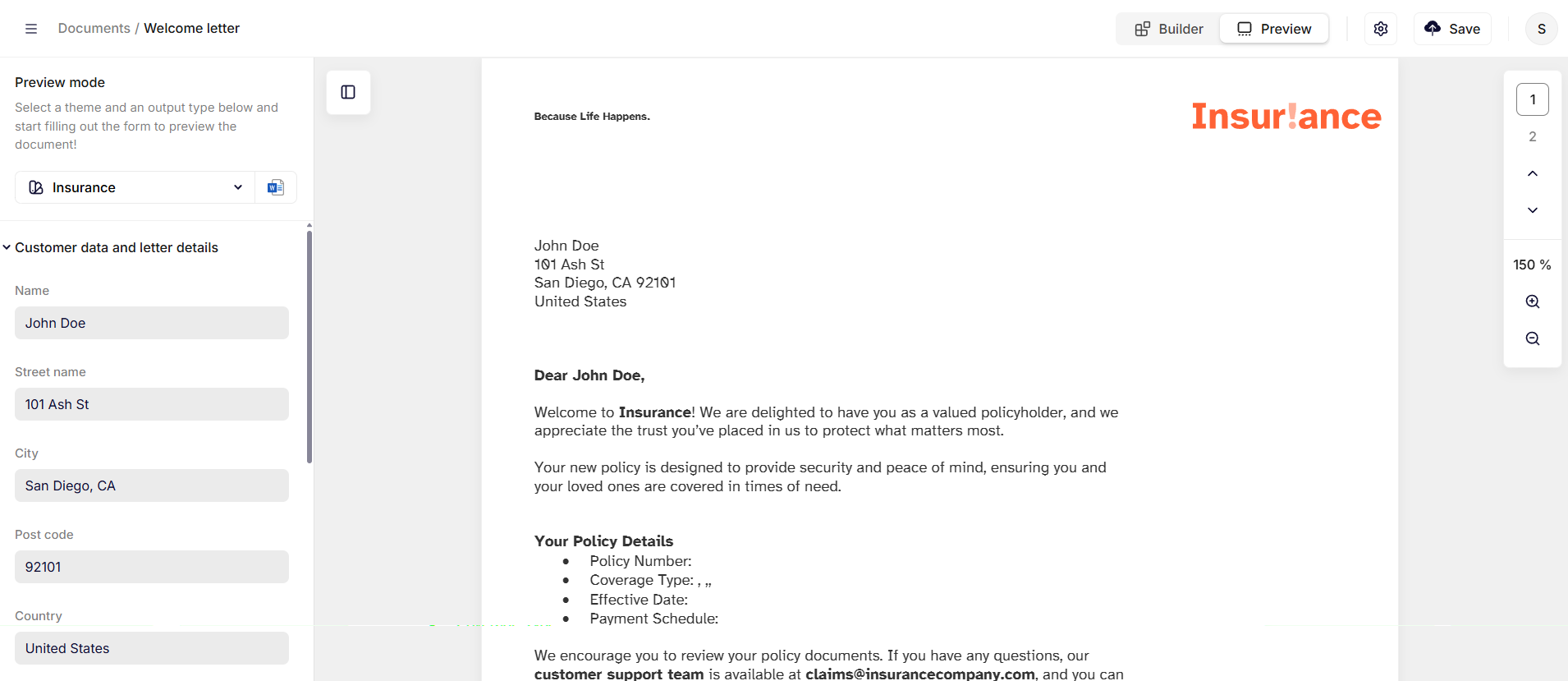
Preview mode with form inputs and generated document preview
How preview works
Preview mode connects three components of the template configuration:
| Component | Purpose |
|---|---|
| Template | Defines the document structure and content. |
| Form (Information Tree) | Provides input fields used in the document. |
| Theme | Defines styling and visual appearance of the document. |
When preview mode is active:
- You select a theme and output format.
- You fill out the form fields.
- The system renders the document instantly using the provided values.
This allows you to quickly verify that dynamic content is inserted correctly.
Switching between builder and preview
You can switch between Builder and Preview using the toggle in the top-right corner of the editor.
| Mode | Purpose |
|---|---|
| Builder | Used to edit the template and configure the information tree. |
| Preview | Used to test how the generated document will look. |
Preview mode does not modify the template itself. It only renders a simulated output.
Filling out the preview form
The left panel in preview mode displays the form generated from the Information Tree.
Each field corresponds to a node defined in the template. When you enter values into these fields, the document preview updates automatically.
For example, you can test:
- Names and addresses
- Policy numbers or case identifiers
- Dates and numeric values
- Select fields and conditional logic
This allows you to simulate realistic data scenarios.
The form is identical to how it would look for a user, when they use the template in the front-end.
Selecting theme and output type
At the top of the preview panel, you can select:
| Option | Purpose |
|---|---|
| Theme | Defines the styling used to render the preview document. |
| Output type | Defines the format used for rendering the preview (e.g. Word, HTML or PDF). |
Changing these options allows you to test how the same template behaves with different styling or output formats.
Testing dynamic content
Preview mode is especially useful for verifying dynamic content such as:
- Conditional sections
- Repeating elements
- Tables generated from structured data
By adjusting the form values, you can confirm that the document behaves correctly under different scenarios.
Good to know
Preview does not generate a final document
Preview mode only renders a simulation of the document.
It does not generate or store a final output file, unless you press the Download preview button at the bottom of the form, which will add the file to your downloads folder in the selected format.
Preview uses live template configuration
The preview always reflects the current state of the template. Any changes made in builder mode will immediately affect the preview once you switch modes.
This makes preview mode ideal for iterative template development instead of having to publish your changes every time you need to test your configuration.
Updated 6 months ago