
Repeat
Repeat content in your documents
Introduction
Use a Repeat node to collect a list of repeating entries.
A Repeat node allows the user to add the same set of fields multiple times. This is useful when you need to collect several items of the same type, such as multiple people, products, or addresses.
Each entry inside the repeat follows the same structure, defined by the nodes placed inside the Repeat node.
Add a Repeat node
To add a Repeat node, click the plus (+) icon in your section and select Repeat.
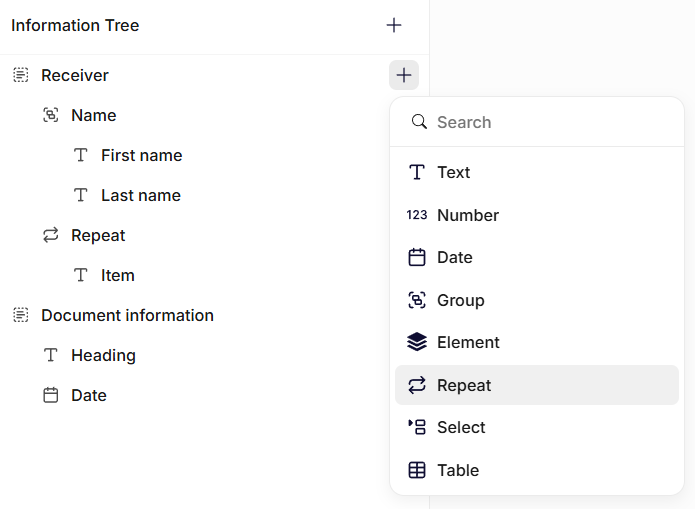
Insertion of a repeat node
After adding the Repeat node, you can insert other nodes inside it. These nodes define the fields that will repeat for each entry.
For example, a Repeat node could contain fields such as:
- Name
- Phone number
When filling out the form, the user can then add multiple entries using this structure.
General settings
Name
Enter a clear name. This label appears in the Information Tree and helps you identify the repeat section.
Description
Add a short description explaining what type of entries should be added.
Edit content
Add the content that should be repeated in the document.
The content you add here will be inserted once for each item the user adds to the repeat in the form.
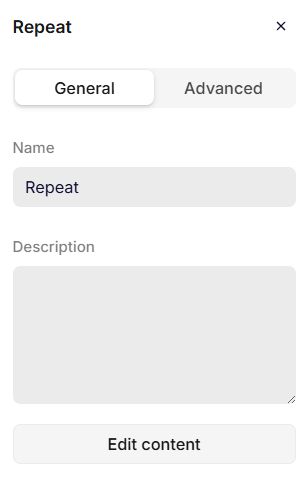
General settings
Advanced settings
Key
The key automatically inherits the Name you enter in the General settings. If needed, you can change it and define a unique key for the node.
The system uses the key to reference the repeating data structure in templates and transformations.
Use a clear and consistent naming pattern. For example: participants, items, or addresses.
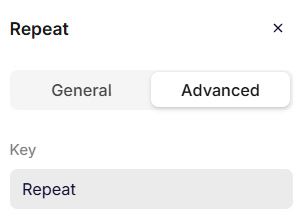
Advanced settings
Using Repeat nodes in templates
When a Repeat node is inserted into a template, it allows the document to render multiple entries dynamically.
Each entry in the repeat is processed individually, allowing the template to generate repeating sections such as:
- Lists of attendees
- Tables of items
- Multiple addresses
The template will iterate through each item and render the corresponding content.
This allows templates to adapt automatically based on the number of entries provided by the user.
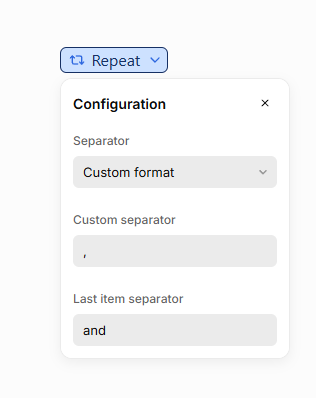
Use separators between items
It is possible to add a separator to the repeat node after inserting it into the document.
The separator will be added between every iteration of the items added to it.
By default, the separator will be set to "None", which will add a line break between each iteration.
The available options for Separator are:
- None
- Newline
- Custom separator
- Last item separator
Place the repeat field inline
Separators only take effect when the repeat field is placed inline — with other content in front of it on the same line. Text before the field is enough, and even a single whitespace will do.
If the repeat field stands alone on its own line, each item is placed on a new line, regardless of the separator settings.
| Placement in the template | Result |
|---|---|
Attendees: [Repeat field] — text in front | Items are joined on one line using the separators |
[Repeat field] — a whitespace in front | Items are joined on one line using the separators |
[Repeat field] — alone on the line | Each item starts on a new line |
Include whitespace in your separators
Custom and last item separators are inserted exactly as you type them — no spaces are added automatically. Include the whitespace you want in the separator itself.
For example, to produce Alice, Bob and Charlie:
- Custom separator:
,— comma followed by a space - Last item separator:
and— a space before and after the word
Without the whitespace (, and and), the output becomes Alice,Boband Charlie.
Common uses for custom separators:
| Use case | Separator setting | Last item separator | Output example |
|---|---|---|---|
| Comma-separated values | , | — | Alice, Bob, Charlie |
| Natural sentence | , | and | Alice, Bob and Charlie |
| Natural sentence (Oxford comma) | , | , and | Alice, Bob, and Charlie |
| Semicolon-separated lists | ; | — | Paris, France; Berlin, Germany; Copenhagen, Denmark |
| Bullet-like inline lists | | | — | Option A | Option B | Option C |
| Slash-separated values | / | — | Admin / Editor / Viewer |
Updated 23 days ago