
Rich-text editor
Write your content
Overview
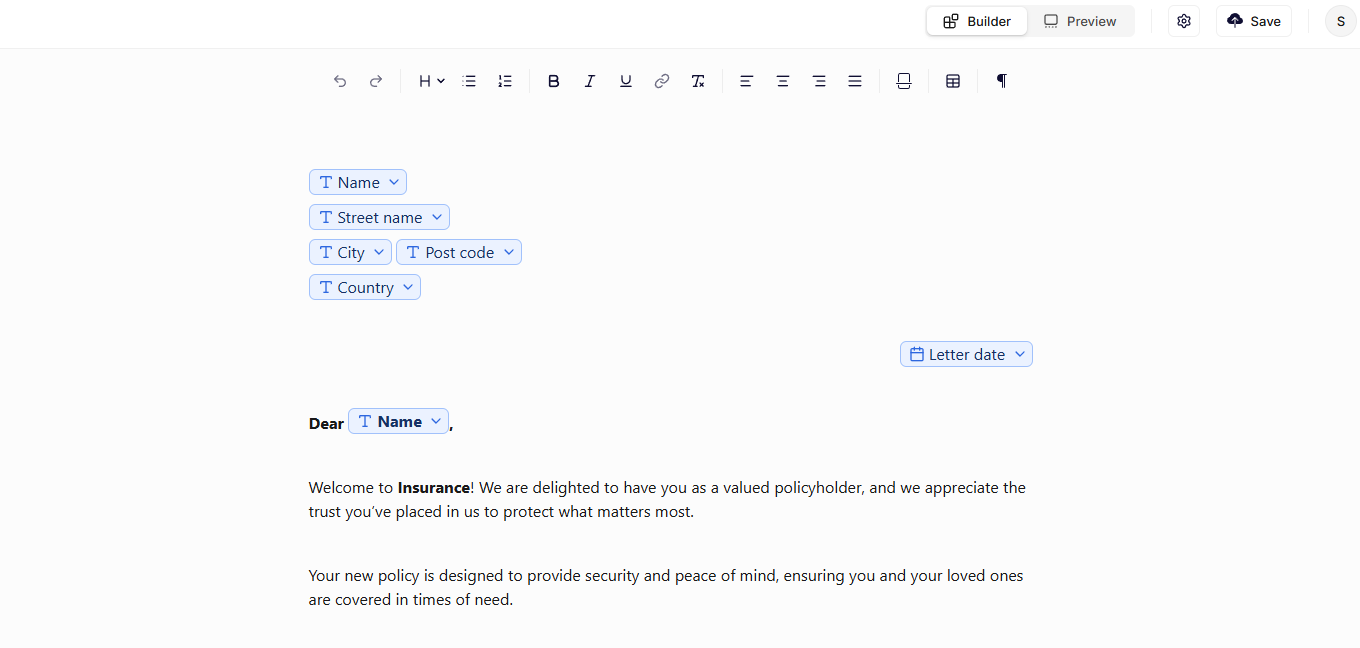
The rich-text editor allows you to write document content and insert dynamic data fields that are replaced when a document is generated. These fields reference nodes from the information tree and automatically populate the document with data from the form or integrations. Read more about the information tree here.
The editor combines traditional document editing tools with dynamic placeholders, allowing administrators to build structured and flexible document templates.
Rich-text editor
The rich-text editor supports common document formatting features and dynamic data insertion.
| Component | Description |
|---|---|
| Text formatting | Provides standard text formatting tools such as headings, bold, italics, and lists. |
| Dynamic fields | Allows inserting data fields from the information tree into the document. |
| Layout elements | Supports tables, alignment, images, and structured content blocks. |
| Document structure | Enables creation of complex documents with dynamic content sections. |
These tools allow administrators to build fully dynamic documents while maintaining a familiar editing experience.
Editor toolbar
The toolbar contains the controls used to format content and structure the document.
The available tools include:
| Tool | Description |
|---|---|
| Undo / Redo | Revert or reapply recent changes. |
| Headings | Apply heading levels to structure the document. |
| Lists | Create ordered or unordered lists. |
| Bold / Italic / Underline | Apply common text formatting. |
| Links | Insert hyperlinks into the document. |
| Clear formatting | Remove formatting from selected text. |
| Alignment | Control left, center, or right alignment of text. |
| Tables | Insert tables for structured data presentation. |
| Paragraph marks | Show/Hide paragraph marks in the document. |
| Images | Insert images with alternative texts. |
These tools work similarly to traditional word processors, allowing administrators to format documents easily.
Images
When you insert images directly from the toolbar, it is possible to browse the available images in your content sources. If these images contain alternative texts, they are automatically applied when generating the document.
After insertion you can adjust the dimensions of the image by dragging at the edges, or clicking it and changing the height and width manually.
Dynamic fields
Dynamic fields allow the document to reference data from the Information Tree.
When you insert a field, it appears as a labeled token inside the editor. During document generation, the system replaces the token with actual data.
Examples of dynamic fields include:
- Names
- Addresses
- Dates
- Numbers
- Data from integrations
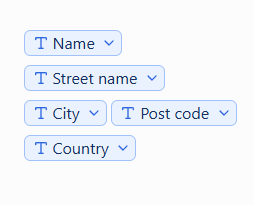
Dynamic fields inserted in the document
Dynamic fields are visually highlighted in the editor so administrators can easily distinguish them from regular text.
Inserting fields from the Information Tree
Fields are inserted directly from the Information Tree.
To insert a field:
- Locate the field in the Information Tree.
- Drag the field into the editor or press the insert button.
- Pressing the insert button, inserts the field at your current cursor location in the document.
- The field appears as a dynamic token in the document.
Each field maintains a reference to its underlying data node, ensuring that the correct value is inserted when the document is generated. On the field themselves, you can configure settings such as formatting, which you can read more about in the Nodes section.
Layout and structure
The rich-text editor supports structured layout elements that help organize complex documents.
These include:
| Element | Purpose |
|---|---|
| Headings | Define sections and document hierarchy. |
| Tables | Display structured information such as lists or summaries. |
| Paragraphs | Standard text blocks used for most document content. |
| Lists | Present ordered or unordered information. |
| Images | Display graphics relevant for the document. |
Using these elements allows administrators to build professional document layouts without relying on external document tools.
Preview mode
The editor provides a Preview mode that shows how the final document will appear when generated.
Preview mode allows you to fill out the form as the end-user would see it to populate dynamic fields in the document. This allows administrators to verify formatting, layout, and dynamic content placement before publishing.
Preview mode is especially useful when testing:
- Conditional content
- Table rendering
- Layout consistency
- Theme application
- Image sizing
Builder mode
Builder mode is where administrators design and configure the document.
In this mode you can:
- Edit document text
- Insert dynamic fields
- Structure the document layout
- Configure template settings
Switching between Builder and Preview allows administrators to quickly test changes during template configuration.
Good to know
Dynamic field behavior
Dynamic fields always reference the node from which they were inserted.
If the node name or structure changes in the information tree, the field reference remains connected to the underlying key used in the data structure.
Updated 27 days ago