
Datasets
Add local JSON data to a template for use in the information tree.
What is a dataset?
A dataset is a local JSON data structure that you add directly to a template in the editor. Once added, the dataset result is available to the template, which can then be used to prefill form fields when configuring information tree nodes.
A dataset consists of three parts:
- Inbound data: the raw JSON you define or paste into the editor.
- Filter: an optional transformation applied to the inbound data.
- Result: the output of the filter, or the inbound data if no filter is configured.
Datasets are stored locally in the template. They are not shared across templates or persisted to a central data store.
When to use datasets
Datasets are useful when you have data that is known at template-build time and that you want to make available in the information tree without connecting to an external data source. Common use cases include:
- Providing a fixed list of options for a select field, such as a list of departments or product categories.
- Filtering or reshaping inbound data before exposing it to the information tree.
- Normalizing date formats so they are consistent across the template.
- Combining values from separate fields into a single output string.
Opening the Dataset tab
A Dataset button is available in the top-right area of the editor toolbar. Clicking it opens the Dataset tab.
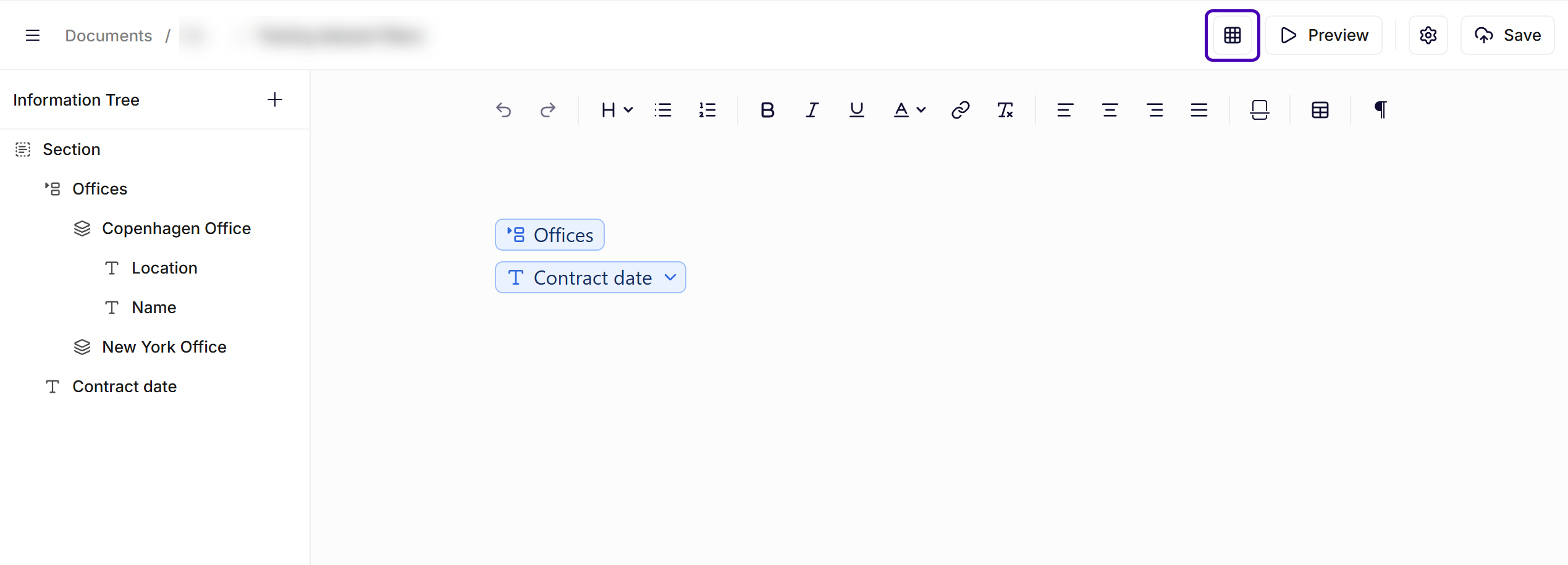
Datasets button
From the Dataset tab you can add a dataset to the document and configure its inbound data and filter.
Dataset tab layout
The Dataset tab uses a three-column layout:
| Column | Description |
|---|---|
| Inbound data | A JSON editor where you define the raw input data for the dataset. |
| Filter | An optional field where you configure a transformation to apply to the inbound data. |
| Result | A read-only view of the output produced by running the filter against the inbound data. |
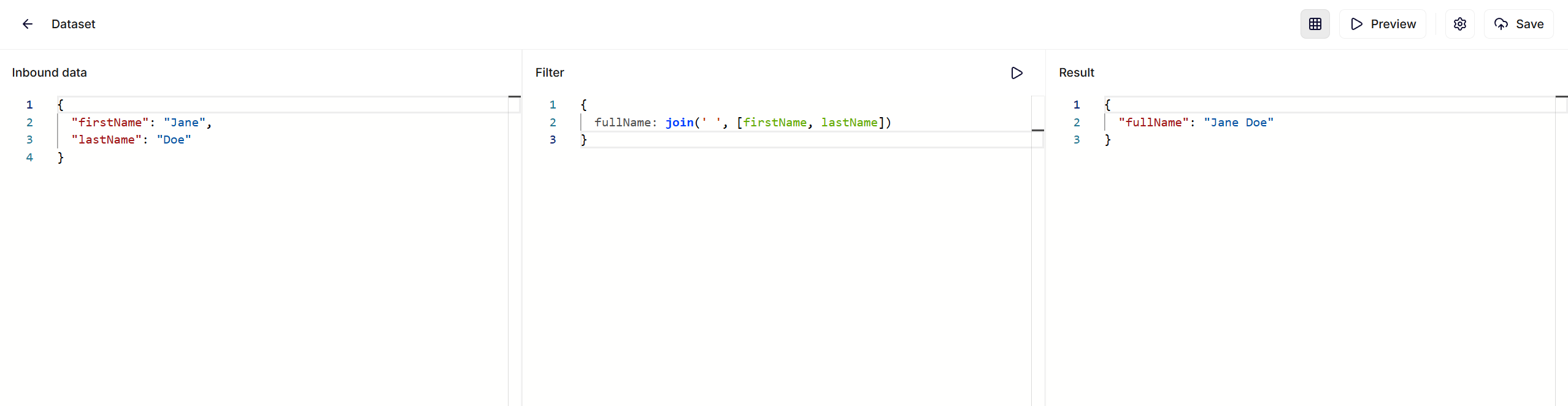
Overview of the dataset tab
Inbound data
The Inbound data column contains a JSON editor. Enter or paste valid JSON into this editor to define the data that the dataset will work with.
The JSON must be valid. If the editor contains invalid JSON, the filter cannot be run and the result pane will not update.
Filter
The Filter column is optional. Use it to configure a transformation that is applied to the inbound data before it is made available in the document.
After configuring a filter, click Run to execute it. The result appears in the Result column.
If no filter is configured, the result is the inbound data as-is.
Result
The Result column shows the final dataset output after the filter has been applied. This view is read-only.
Dataset pane in the editor
Once a dataset has been added, a collapsible Dataset pane appears in the main editor next to the information tree.
The Dataset pane shows the dataset result. Values from this result can be dragged and dropped into the information tree, to be automatically created as nodes.
If no dataset has been added to the template, the Dataset pane is not shown and existing editor behavior is unchanged.
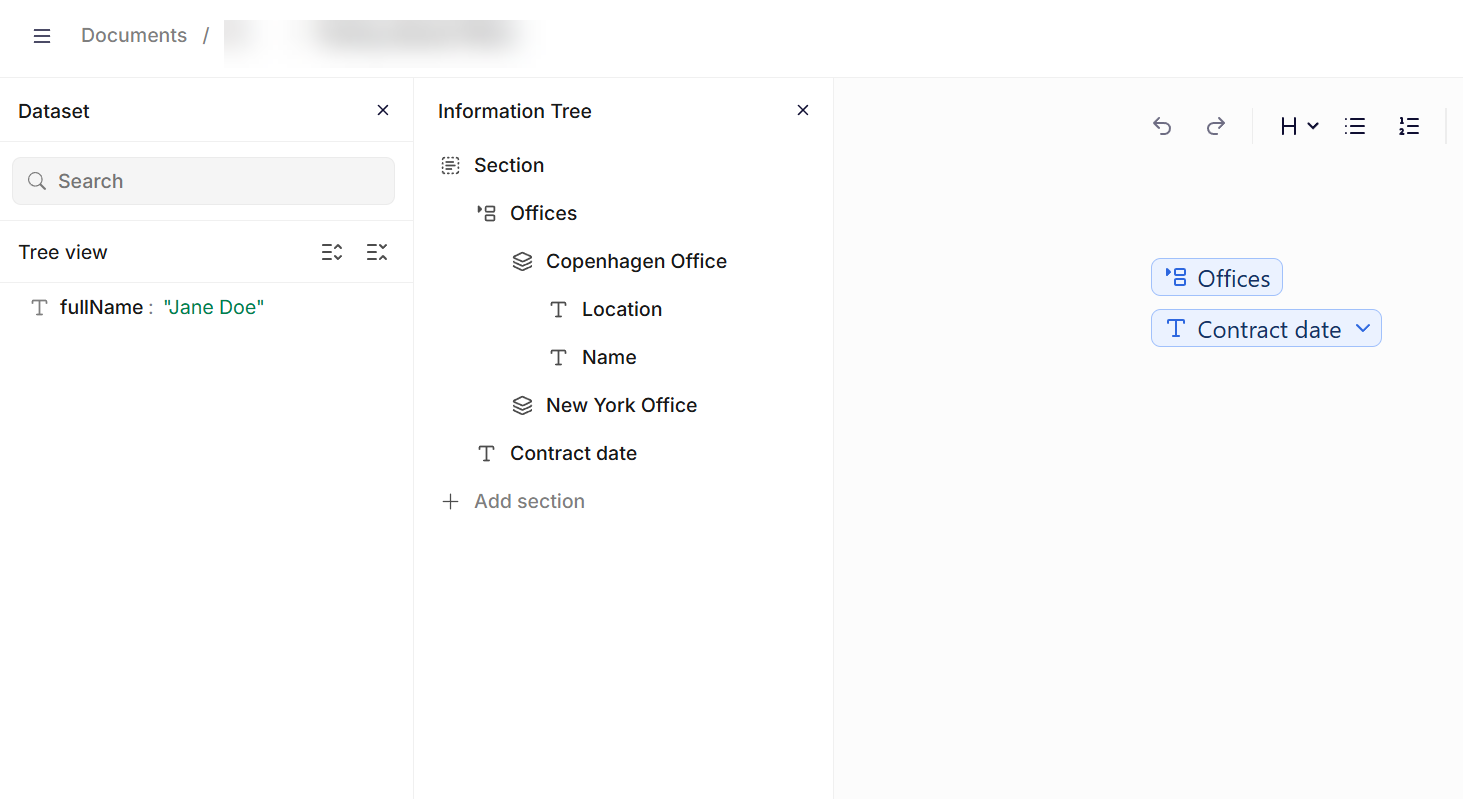
Dataset pane in the editor
Examples
Pre-select an option in a select node
Use a dataset to transform an inbound value into the structure expected by a Select node. A Select node requires an object with an option property referencing the name of the element to select, plus a data object containing the values to insert into that element.
In this example, the recipient's department determines which office location is selected in the template.
Inbound data:
{
  "recipient": {
    "name": "Jane Doe",
    "department": "Legal",
    "office": "Copenhagen Office",
    "location": "Wilders Plads 15A, Copenhagen"
  }
}
Filter:
{
  offices: {
    option: recipient.office,
    data: {
      Name: recipient.office,
      Location: recipient.location
    }
  }
}
Result:
{
  "offices": {
    "option": "Copenhagen Office",
    "data": {
      "Name": "Copenhagen Office",
      "Location": "Wilders Plads 15A, Copenhagen"
    }
  }
}
The option value must match the name of an element configured in the Select node. If the office name arriving from the external system does not match exactly, use replace or if in the filter to normalize it before passing it through.
Filter a list to a relevant subset
When the inbound data contains more entries than are needed in the template, use a filter condition to return only the relevant items.
Inbound data:
{
  "products": [
    { "name": "Widget A", "active": true },
    { "name": "Widget B", "active": false },
    { "name": "Widget C", "active": true }
  ]
}
Filter:
products[?active == `true`]Result:
[
  { "name": "Widget A", "active": true },
  { "name": "Widget C", "active": true }
]
Only active products are passed through to the information tree.
Normalize a date format
Use to_datetime and format to convert a raw date string to a usable format before it is used in the template.
Inbound data:
{
  "contractDate": "2025-02-19T00:00:00Z"
}
Filter:
{
  contractDate: format(to_datetime(contractDate, 'dd-MM-yyyy', 'en-US'), 'MMMM d, yyyy', 'en-US')
}
Result:
{
  "contractDate": "February 19, 2025"
}
The normalized date string is now available in the information tree under contractDate.
Join two fields into a single value
Use join to combine two string fields from the inbound data into one value, such as a full name composed from a first name and a last name.
Inbound data:
{
  "firstName": "Jane",
  "lastName": "Doe"
}
Filter:
{
  fullName: join(' ', [firstName, lastName])
}
Result:
{
  "fullName": "Jane Doe"
}
The combined value is now available in the information tree under fullName.
Considerations
Invalid JSON: The JSON editor does not block the editor from functioning, but a filter cannot be run while the inbound data contains invalid JSON.
Large datasets: Very large datasets may affect editor performance. Keep inbound data to what is needed for the document.
Filter expressions: Filter logic is evaluated locally. Be aware of variations of inbound data that might make the filter fail.
Coming soon: We are working on an AI assistant for datasets that will help you write and validate filters directly in the editor.
Updated 2 months ago