
Image
Insert images in your documents
Introduction
Use a Image node to display an image inside your document.
An Image node lets you insert a single image asset, such as a photo, illustration, logo, or scanned document, directly into a section of your document.
This node is useful when you need to present visual content that supports the surrounding text, such as a company logo, a product photo, a signature, or a certificate.
Add an Image node
To add an Image node, click the plus (+) icon in your section and select Image.
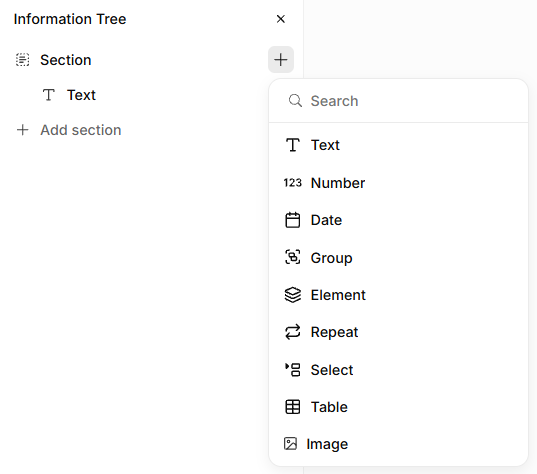
Insertion of an image node
After adding the Image node, you can upload or select the image you want to display. The image will be placed exactly where you inserted the node in your section.
General settings
Name
Enter a clear name, for example Logo main horizontal color. This label appears in the information tree and helps you identify the image.
Description
Add a short description explaining what the image shows or how it should be used.
Required
Toggle this on if the image must be provided whenever this node is used. Leave it off if the image is optional.
Default configuration
This section lets you set how the image is sized by default. Expand or collapse it using the "-" icon next to the heading.
Dimensions
Choose how the image should be sized:
- Keep original size: The image displays at its native dimensions.
- Fixed width: Enter a value to set an exact width. The height adjusts automatically, since the aspect ratio is locked.
- Fixed height: Enter a value to set an exact height. The width adjusts automatically, since the aspect ratio is locked.
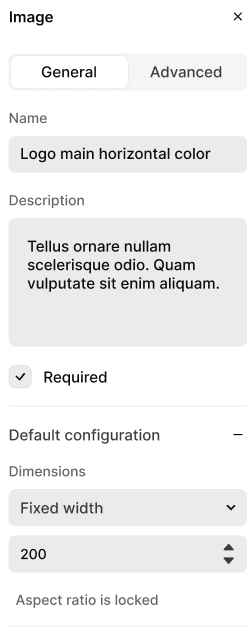
Image settings
Advanced settings
Key
The key automatically inherits the Name you enter in the General settings. If needed, you can change it and define a unique key for the node.
The system uses the key to reference this image in the data structure and in templates.
Use a clear and consistent naming pattern. For example: companyLogo or signatureImage.
Do not use spaces or special characters. Use letters only.
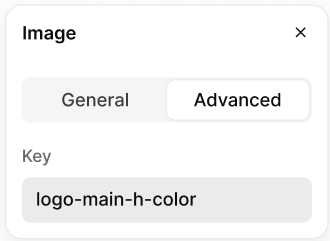
Advanced settings
Using Image nodes in templates
When an Image node is inserted into a template, the document will render the selected image at that exact position, sized according to the dimension settings defined for the node.
Image nodes are commonly used to present visual elements such as:
- Company logos
- Product photos
- Signatures
- Certificates or stamps
An Image node always renders a single image.
Updated about 2 months ago